
Clean up suspended accounts before offboarding
In large organizations, employee offboarding happens constantly. When a user leaves, their Google Workspace account is usually suspended and later deleted. These accounts often contain important and sometimes sensitive data stored in Google Drive.
When these accounts are left unmanaged, they can waste storage, increase the risk of data loss, and create security or compliance issues.
In this article, we explain how to audit and clean data from suspended accounts before transferring it.
Use cases
- Offboarding employees in Google Workspace
- Managing suspended or inactive user accounts
- Auditing Google Drive data before account deletion
- Cleaning unused or obsolete files to reduce storage usage
- Preparing data for transfer
Why You Should Audit Accounts Before Any Transfer
Suspended accounts still own files, folders, and shared content across Google Drive. Deleting or transferring an account without understanding what it contains can result in losing critical business data or keeping unnecessary files forever.
Before any data transfer, organizations need a clear view of:
- What files are owned by the account?
- Where those files are located?
- How are they shared?
- Are they unused, large, or sensitive?
This audit phase is essential to make informed and secure decisions.
These features are available with an Enterprise plan and can only be used by Google Workspace administrators. If you’re interested, you can book a free demo.
How Folgo Helps Audit Suspended Accounts
To review the content of a suspended account, Folgo offers two different ways to generate a spreadsheet listing the files. Both methods lead to the same result: a Google Sheet you can act on with Folgo.
- Open Folgo from within Google Drive by using the right sidebar.
- Go to Admin Tasks.

- Then select Audit Content & Access.
- Choose the corpus “Google account” (you may audit one or multiple accounts at once).

- Enter the email address of the account(s) to audit.
Select the items for the audit. You can choose:
- Everything
- Shared items
- Shared publicly
- Size greater than…
- Viewed in the last 12 months
- Shared with me
Optionally check "List files permissions" to include detailed access rights on each file.
- Run the audit and Folgo will generate a spreadsheet with the results (Folgo will notify you by email when it's done).
Folgo generates a Google Sheets report listing all matching files and their metadata, including ownership, size, sharing, and access.
Auditing is just one of the features Folgo offers. Folgo can also help you manage many other actions for suspended accounts. For more information, refer to this article: What You Can and Can't Do with a Suspended Google Account
Delete Unused Files From the Audit Report
Now that you have your audit report, you have full visibility into the account’s content, including its files, folders, and sharing activity. The next step is to clean the account and remove unnecessary data.
- Open the Audit report.
- Open Folgo (in Google Sheets).
- Select Delete Content, which will take you to the "Listing Detail" tab displaying all files owned by the audited account.

- Manually select the files you want to delete, directly in the spreadsheet. Here's a short guide: Quickly delete files and folders

Tips: You can filter rows in the Google Sheet to narrow down what you want to remove.
Click the refresh button to reload the interface.
Remove unused documents, outdated files, duplicated content, temporary exports, or unnecessarily large files that no longer provide business value.
- Once done, click on "Move to Trash"
This approach allows you to delete large or unnecessary files in bulk, and clean suspended accounts efficiently without scripting or manual file handling.
It is important to clean the account before transferring data to avoid carrying unnecessary files and wasting storage space, and to ensure that all sensitive data is properly reviewed and preserved.
Move the Cleaned Account to a Shared Drive
Once the suspended account has been cleaned and all unnecessary data has been removed, the next step is to keep the important content you still need. A secure way to do this is to move the account’s remaining Drive data into a Shared Drive, where it can be centrally managed and retained.
To move the account into a Shared Drive:
- Open Folgo from Google Drive using the right sidebar,
- Go to Admin Tasks
- Select Move to Shared Drive
-
Choose Move an account
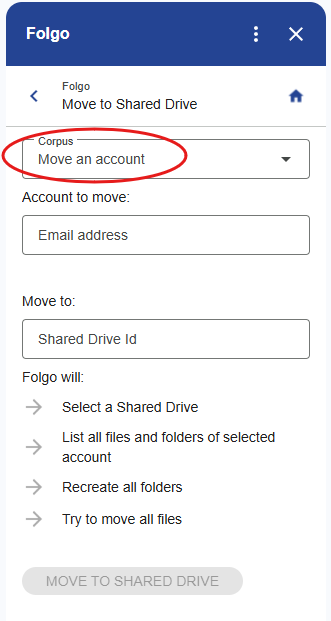
- Enter the email address of the suspended user
- Directly in Google Drive, go to the Shared Drive where the content should be moved and copy paste the Shared Drive ID found in the link (drive.google.com/drive/folders/ID...).
Confirm, Folgo will then securely move the suspended account into the selected Shared Drive while preserving the remaining content. Since the account has already been cleaned, only the necessary files are kept, which helps reduce storage usage and ensures the data is archived in a structured and controlled location.
Next step: Preparing for Backup or Transfer
Once the content has been cleaned and securely archived in a Shared Drive, the remaining data is ready to be:
- backed up
- transferred to another user.
We recommend backing up any important files that were shared with the suspended account but not owned by it, to avoid losing access after the account is deleted.
For the next step, see: How to Back Up Content From Suspended Accounts
If a backup is not needed, you can proceed directly with offboarding by transferring ownership using Folgo. For instructions, see: How to Transfer Ownership From a Suspended Account to An Active Account.